[Oracle RAC 12.1 SHARED FILE SYSTEM Installation]: Checking Display Manager operation on the computer with GUI
LINUX (Ubuntu)
Preparation and check
192.168.1.5 - ip адрес компьютера, с которого происходит процесс управления установкой.
192.168.1.11 - ip адрес сервера
On the client:
$ sudo apt-get install -y gdm
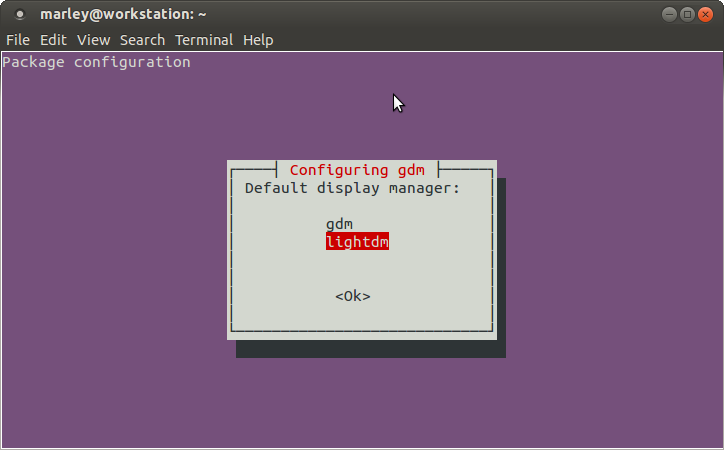
If gdm is selected
# vi /etc/gdm/custom.conf
###########################
[xdmcp]

[chooser]

[security]
DisallowTCP=false

[debug]
###########################
If lightgdm is selected
# vi /etc/lightdm/lightdm.conf
###########################

[SeatDefaults]
user-session=ubuntu
greeter-session=unity-greeter
xserver-allow-tcp=true

###########################
# reboot
Verification commands
$ sudo apt-get install -y nmap nc
$ netstat -an | grep -F 6000
tcp        0      0 0.0.0.0:6000            0.0.0.0:*               LISTEN
tcp6       0      0 :::6000                 :::*                    LISTEN
# nmap -p 6000 192.168.1.5
Starting Nmap 5.21 ( http://nmap.org ) at 2013-08-18 04:13 MSK
Nmap scan report for 192.168.1.5
Host is up (0.000044s latency).
PORT     STATE SERVICE
6000/tcp open  X11
$ nc -vv 192.168.1.5 6000
Connection to 192.168.1.200 6000 port [tcp/x11] succeeded!=
$ xhost +192.168.1.10
Windows
Install XMing and additional fonts. :
http://sourceforge.net/projects/xming/
http://sourceforge.net/projects/xming/files/Xming-fonts/
We reboot. If you don’t reboot, in version 10 RAC installation, problems occurred (the button was not displayed on the last installation step).
Then, you need to configure access rules.
In the simplest case, right-click on the xming shortcut. Go to properties and add -ac to the target (i.e. no access control)
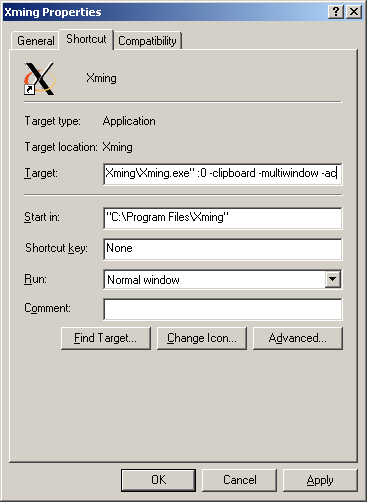
On the server (on one of the nodes):
You can check the operation by installing xterm or xclock
– if not installed earlier, install the xdpyinfo package. It is needed to display windows on the client machine.
# yum install -y xdpyinfo
# yum install -y xclock
$ export DISPLAY=192.168.1.5:0.0
$ xclock
– you can even simpler, just run the command:
$ xclock -display 192.168.1.5:0
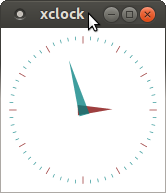
Then all forms used during installation are displayed in the same way.